A companion for TallyPrime · early access

Know who owes you, what you owe, and what to do today.

Chartford reads your TallyPrime books and turns them into a daily worklist: money owed to you, money you owe, cash, sales and GST checks. Made for business owners, and for the accountants and CAs who look after their books.

Watch a short tour first, no sign-up needed
  • You keep working in TallyPrime as usual. Chartford reads a copy of your books through Tally's own XML interface.
  • Reports open in any browser, even when the office PC is off, showing the books as of the last sync.
  • Android and iPhone apps are in private testing; the web portal works in any phone browser today.

Sample data Drawn screens. Sample Precision Works and its customers are made-up names.

One place for the questions you ask every morning

Every answer comes from your own Tally books: the same ledgers, bills and vouchers your accountant already keeps.

See every feature
  • Money owed to you

    Every customer with a balance, how old each bill is, and who to call first.

  • Money you owe

    Suppliers by age, and a plan for what to pay each week.

  • Cash

    Money in against money out, week by week, compared with the receipts in Tally.

  • Sales

    Registers for any period by salesperson, state or sales type, with top customers and trends.

  • GST checks

    GSTR-2B matched to purchases, GSTR-1 against 3B and your books, and tax-audit checks.

  • Collections

    Call, WhatsApp or email from each row, and email reminders that stop when they should.

See it working

The real web portal, on a sample company: the Today list, receivables, one customer's account, the cash plan and the statements. No sound; captions are on screen.

More short videos
A short tour1:19 · no sound, captions on screen · sample data

Your books travel one way: from Tally to your screen

Chartford Sync runs on the PC that runs TallyPrime. It sends a copy of your books over an outbound, encrypted connection to Chartford's server in Mumbai. You and your team open that copy in a browser.

    See the flowcharts

    The five things you'll use most

    Each one is drawn with sample data, the way it works in the web portal.

    Receivables

    A worklist of who owes you, tied to each customer's Tally ledger

    Every customer with a balance sits in one table, split into ageing bands. Filter by All, Overdue, Not due or Promises due. Click a customer to open their account: follow-ups, promises, invoices, receipts and the full ledger.

    • Outstanding is matched to the customer's Tally ledger balance, so the total agrees with Tally.
    • Call, WhatsApp and email buttons on every row.
    • Paid, Part-paid and Unpaid labels from Tally's bill allocations.
    Fund Flow

    Weekly plans for money in and money out, checked against Tally

    Spread a customer's open invoices over dates and instalments, and plan supplier payments against open bills. Fund Flow shows each week's planned money in and out, and compares your plans with the receipts that reached Tally.

    • A receipt counts toward a plan when its Tally bill reference points at the planned invoice.
    • Large collection plans wait for owner or admin approval.
    • Download an approval PDF of the weekly cash plan.

    Reminders

    Email payment reminders that know when to stop

    Approve the wording, mark which contacts agreed to get reminders, and pick the days: before, on and after the due date. Reminders go out each morning at 10:00 IST, largest balances first.

    • Sent only to contacts you marked as agreed, up to four per customer.
    • They stop when the customer replies, opts out, or the payment shows in Tally.
    • Every email has an unsubscribe link. Reminders are sent by email only.

    GST and compliance

    GST checks before you file, not after

    Upload your GSTR-2B file and match it to purchases, with pairing across months. See GSTR-1 against 3B and your books, and a GSTR-9 working paper. For the tax audit, run checks such as 40A(3) cash payments, MSME 43B(h), blocked GST credit and duplicate bills.

    • Exceptions listed one by one, so your accountant can fix them in Tally.
    • Some checks are switched on by our team for your company.

    Team

    The right view for each person, on any screen

    Give each person a role: Owner, Admin, Accounts, Sales or Viewer. Sales logins see only their own customers, everywhere. Menus hide what a role cannot open, and the server refuses it too.

    • Works in any browser, including a phone's.
    • Pages open from the copy on our server, so your team can work when the office PC is off.

    The real screens

    Taken from the web portal, on the sample company. Click any picture to see it full size.

    All features, with more screens
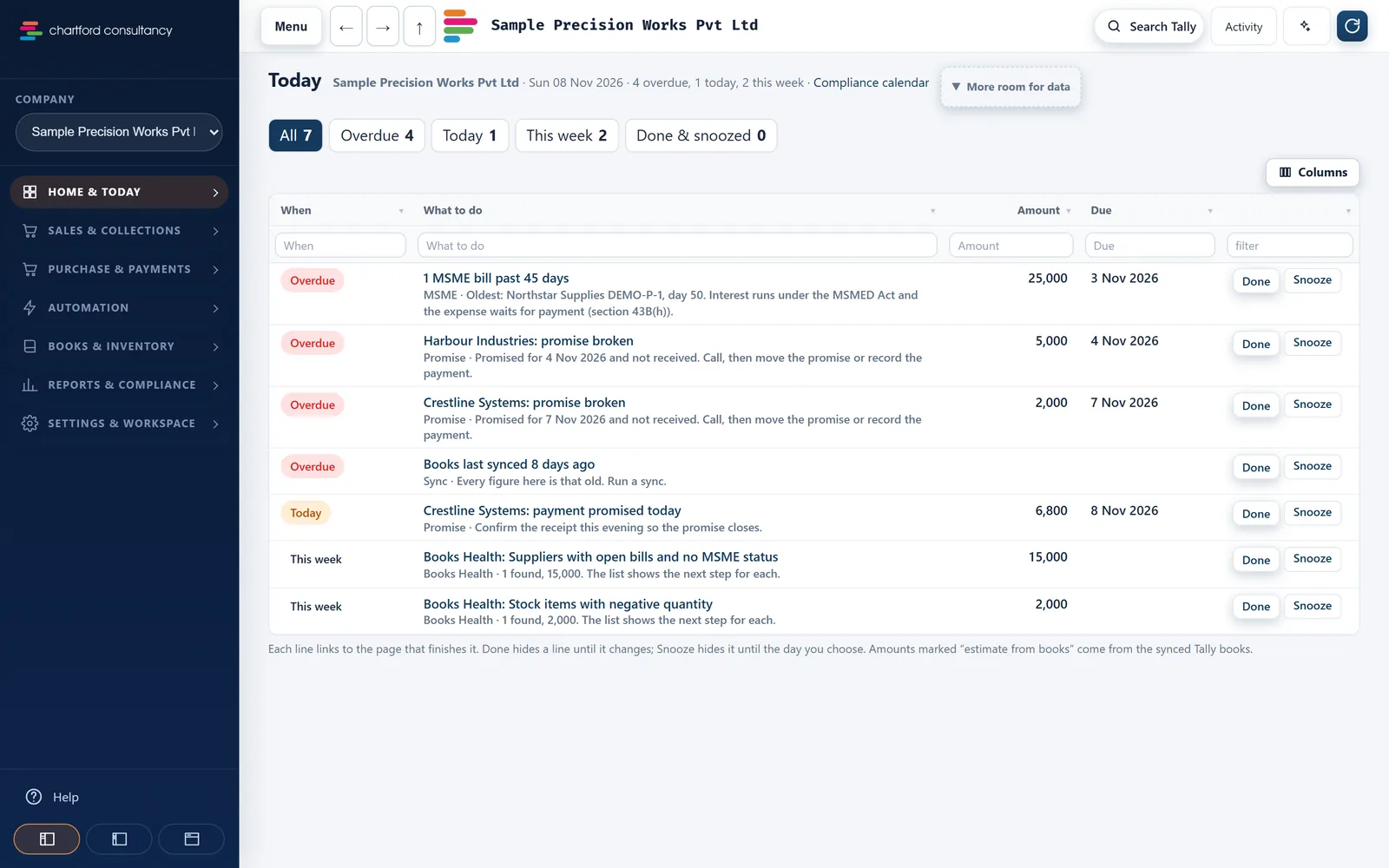
    The Today page of the sample company, listing an overdue MSME bill, a broken promise, a stale sync, a promise due today and Books Health findings
    The Today page lists what is due, each line linked to the page that finishes it. Our team switches it on for your company.Sample data
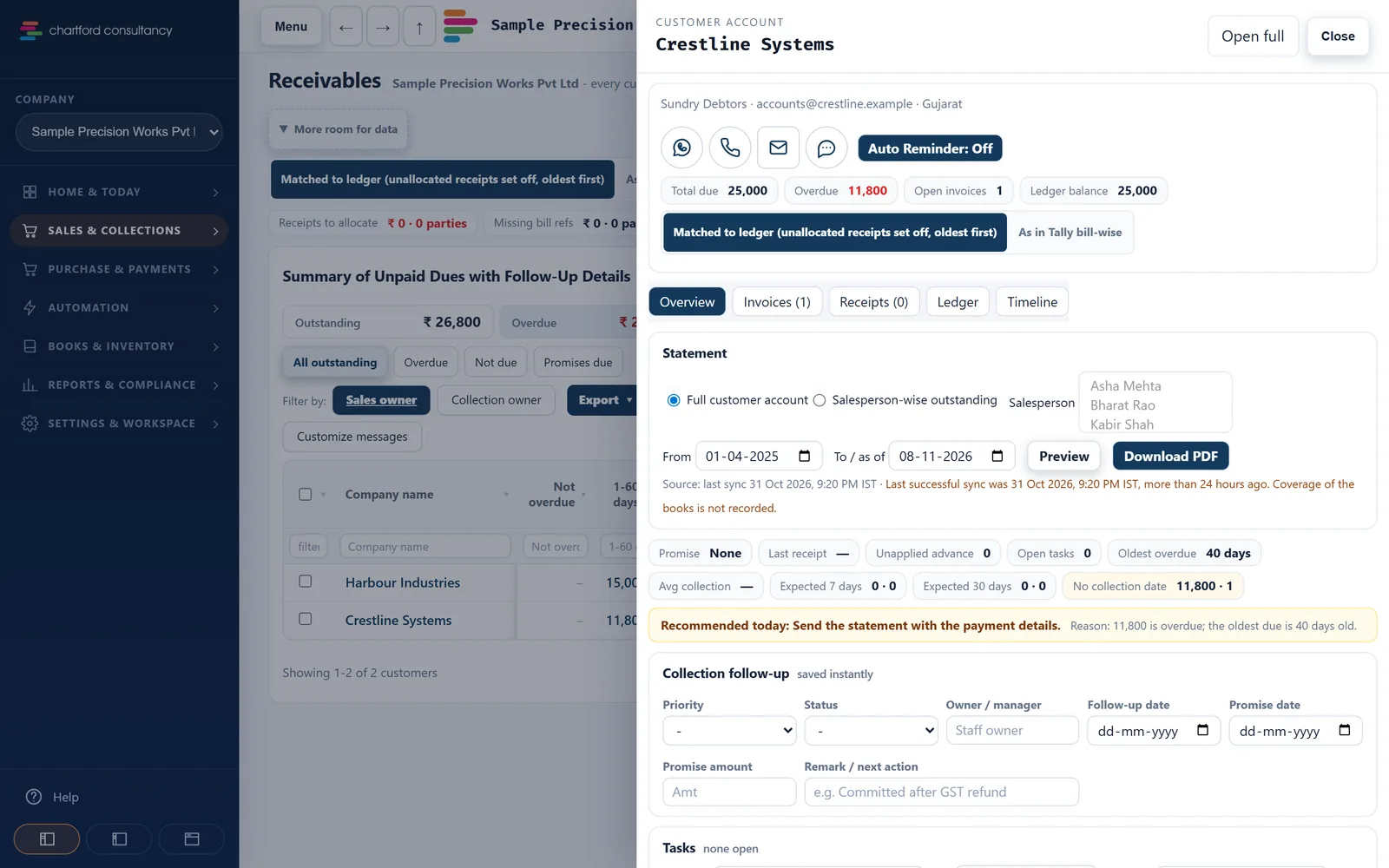
    A customer account for Crestline Systems with call, WhatsApp and email buttons, totals, a statement download and the follow-up card
    One customer: balance, follow-up, statement and promise in one place.Sample data
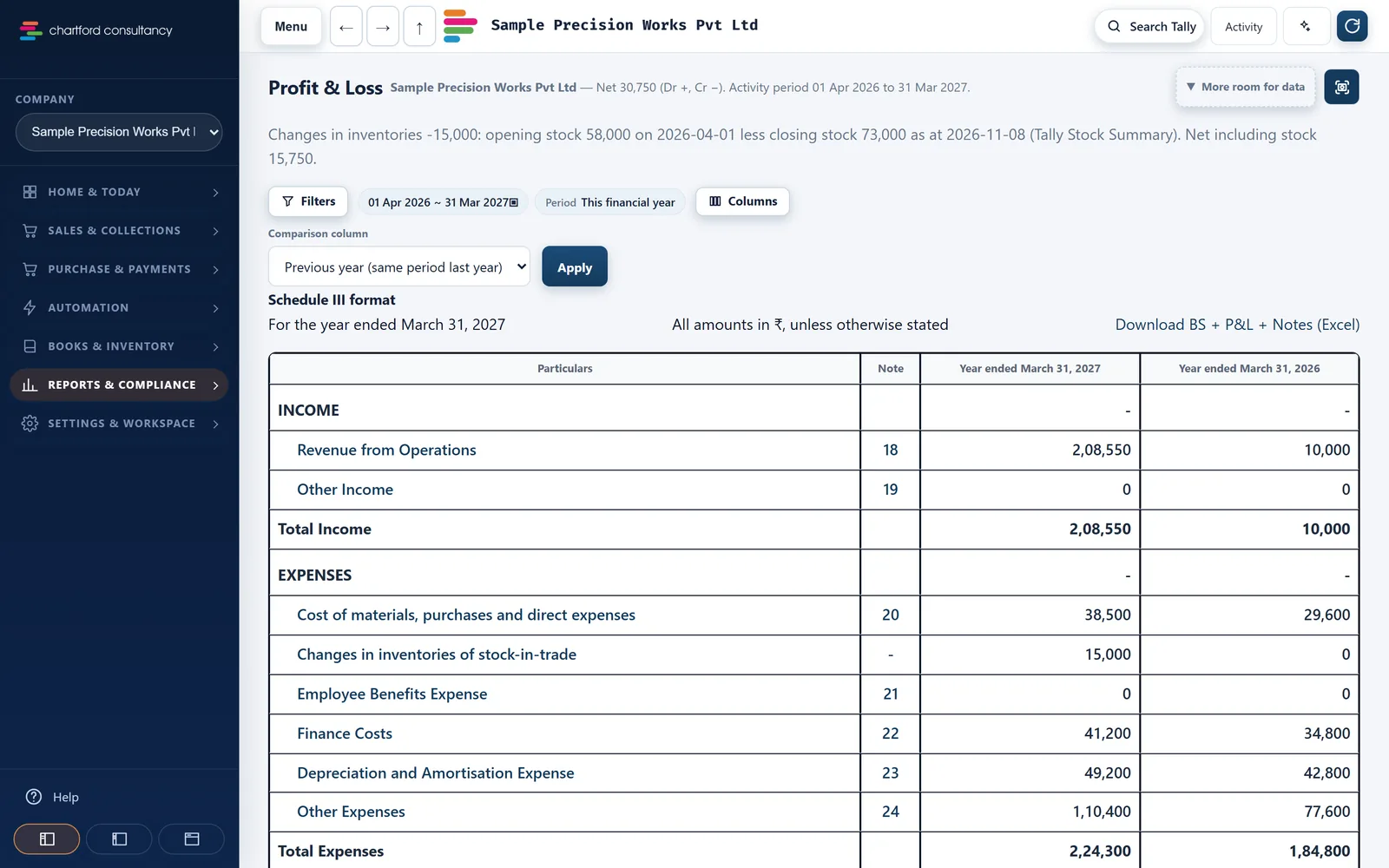
    Profit and Loss of the sample company in Schedule III format with the previous year beside it
    Profit & Loss in Schedule III, with an Excel download of the notes.Sample data

    Made for three people who look at the same numbers

    The owner, the accountant or CA, and the sales team each open Chartford for a different reason.

    Business owner

    Opens first
    The dashboard, or the morning summary email.
    Does with it
    Checks cash against what is due, approves large collection plans and supplier payment runs.
    Sees
    Everything, including team and settings.

    Accountant or CA

    Opens first
    The financial statements, Books Health and GST checks.
    Does with it
    Reviews GST and tax-audit checks, and downloads the Balance Sheet, P&L and notes to Excel.
    Sees
    The role the owner gives them. GSTR-2B matching needs the Admin role.

    Sales person

    Opens first
    Receivables, with only their own customers.
    Does with it
    Calls or messages from each row, records promises, plans collections.
    Sees
    Only their own customers. No payables and no financial statements.

    How fresh are the numbers?

    Every figure shows the books as of the last sync. Here is when that happens.

    1. First, the last 7 daysThe first read loads the past week so you can start. Older history then fills in, in the background.
    2. Then about every hourWhile the PC and TallyPrime are on, the companies you chose are updated. Some plans update more often. Sync now works any time.
    3. Office PC off?Reports still open, showing the books as of the last sync. Hover Sync now to see when that was.
    Why a figure can differ from Tally, and how to check it

    Plain facts about your data

    No badges and no "100% secure". Just what happens to your books.

    • A copy of your books is kept on our serverHosted in Mumbai. That copy is how you open your books anywhere; your Tally data folder stays on your PC.
    • Your PC opens no portChartford Sync only makes outbound HTTPS calls. Nothing connects into Tally.
    • Each customer's data is kept apartSeparated in the database itself, and a PC can send data only into its own workspace.
    • Roles are checked on the serverOn every page. Sales logins see only their own customers.
    • Encrypted backups every nightIncluding a locked copy in Mumbai that is kept for 35 days.
    • You can take your data outThe owner can export all workspace data, or delete the workspace.
    Read the security page

    From early access to your first report

    Chartford is in early access. We set up your workspace with you. You start in a browser, on a computer or phone, and finish on the PC that runs TallyPrime.

    1. BrowserRequest early accessTell us about your business and your Tally setup, or book a demo first.
    2. BrowserCreate your workspaceWe send the sign-up link. Confirm your email with a 6-digit code.
    3. Tally PCInstall Chartford SyncOur team sends it to you. Install it on the PC that runs TallyPrime.
    4. Tally PCSwitch on Tally's XML serverIn TallyPrime: F1, Settings, Connectivity. Port 9000 by default.
    5. BothPair the PCGenerate a pairing code in the portal. It works once, for 30 minutes.
    6. BrowserChoose companies and periodCurrent year, all history, or your own dates.
    7. Tally PCFirst syncThe last 7 days first, with progress such as "Reading month 3 of 12".
    8. BrowserCheck, then open your dashboardConfirm what was loaded, compare a few totals with Tally, and start.

    The self-serve download of Chartford Sync is not ready yet. Until it is, our team sends the program to you directly, with a checksum you can use to check the file. Stuck at any step? Write to care@chartford.in.

    Help that follows your setup

    Guides in the order you need them, and short videos for the steps people ask about most.

    Open the help centre
    Work through receivables and follow up1:11 · no sound, captions on screen · sample data
    Books look old? Fix sync problems1:09 · no sound, captions on screen · sample data

    See it on a sample company, then decide

    We'll walk you through the sample company and answer your questions about your own Tally setup. Or ask for early access and we'll write with the next step.

    Prefer email? Write to care@chartford.in.

    Request early access

    I am

    We use these details only to reply to you. You will get one automatic email confirming we received your message.

    Book a demo

    Book a demo

    We will show you the sample company and answer questions about your own Tally setup.

    I am

    We use these details only to reply to you. You will get one automatic email confirming we received your message.